Our courses have many tools available within them to accommodate students at varying levels of skill and independence. You can make the course more useful for students by using a Multi-Tiered System of Support (MTSS). View the slideshow below to learn more.
What Is a Multi-Tiered System of Support (MTSS)?
MTSS is a framework educators can use to help provide academic support to their students. The main factors used in MTSS are the following:
Universal screening of students at the beginning of the year
Tiers of intervention that can be adjusted to respond to the level of each student’s needs.
Continuous data collection throughout the year to monitor student progress
Parent involvement
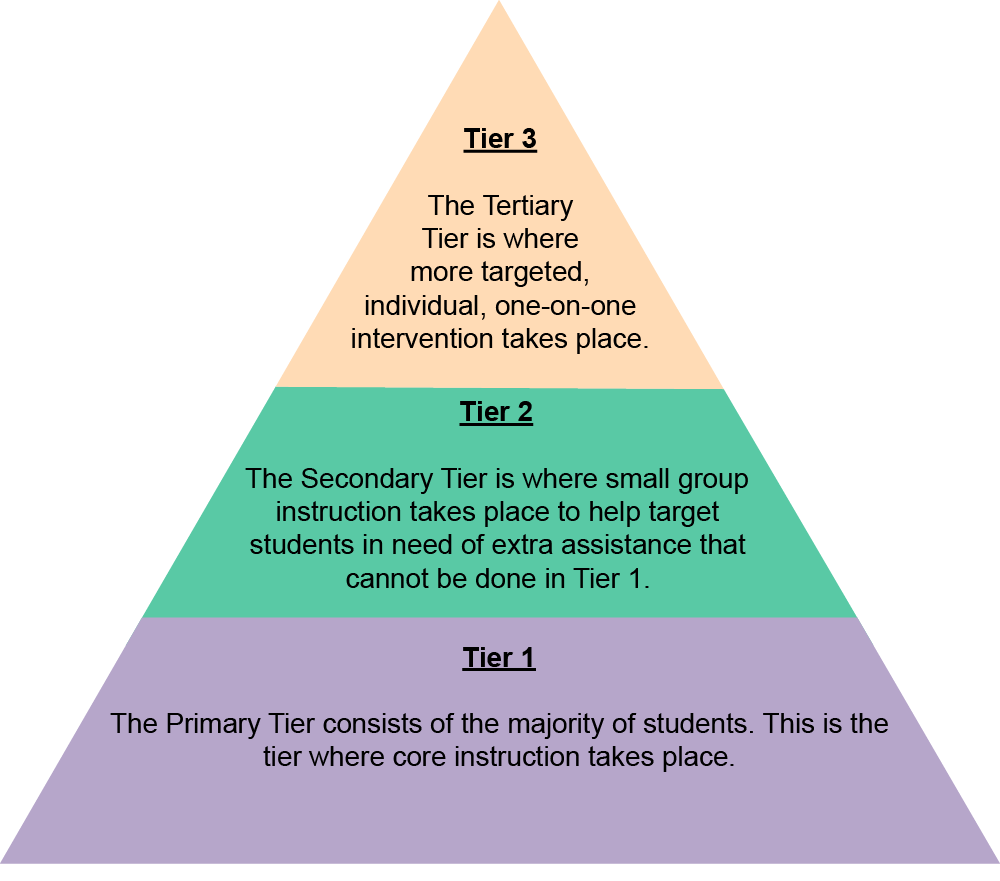
Below is a model showing the 3-tiered system of support used in MTSS:
Trinangle with three horizontal layers. Bottom layer is tier 1 and says The Primary Tier consists of the majority of students. This is the tier where core instruction takes place. Middle layer says tier 2 The Secondary Tier is where small group instruction takes place to help target students in need of extra assistance that cannot be done in Tier 1. Top level says Tier 3 The Tertiary Tier is where more targeted, individual, one-on-one intervention takes place.
Universal Screening of Students
It is important to universally screen your students at the beginning of the year. This is typically done by schools delivering a nationally normed diagnostic assessment, usually in Language Arts and Math, that will assess where each student is on their learning journey. Accelerate Education does not provide a universal screening of students because schools usually use their own. It is strongly recommended that if a school does not currently have a way to universally screen their students, that they find one to use.
Nationally normed diagnostic assessments are usually given in schools at the beginning, middle, and end of the year. This allows for the opportunity to see growth in students as well as to assess if a student needs more intensive intervention. Data-based decision making is important in any educational program. The data from assessments such as these will provide teachers with a snapshot of the needs of their students so that they can plan for their students accordingly using the 3-tiered MTSS system.
3-Tiered Intervention
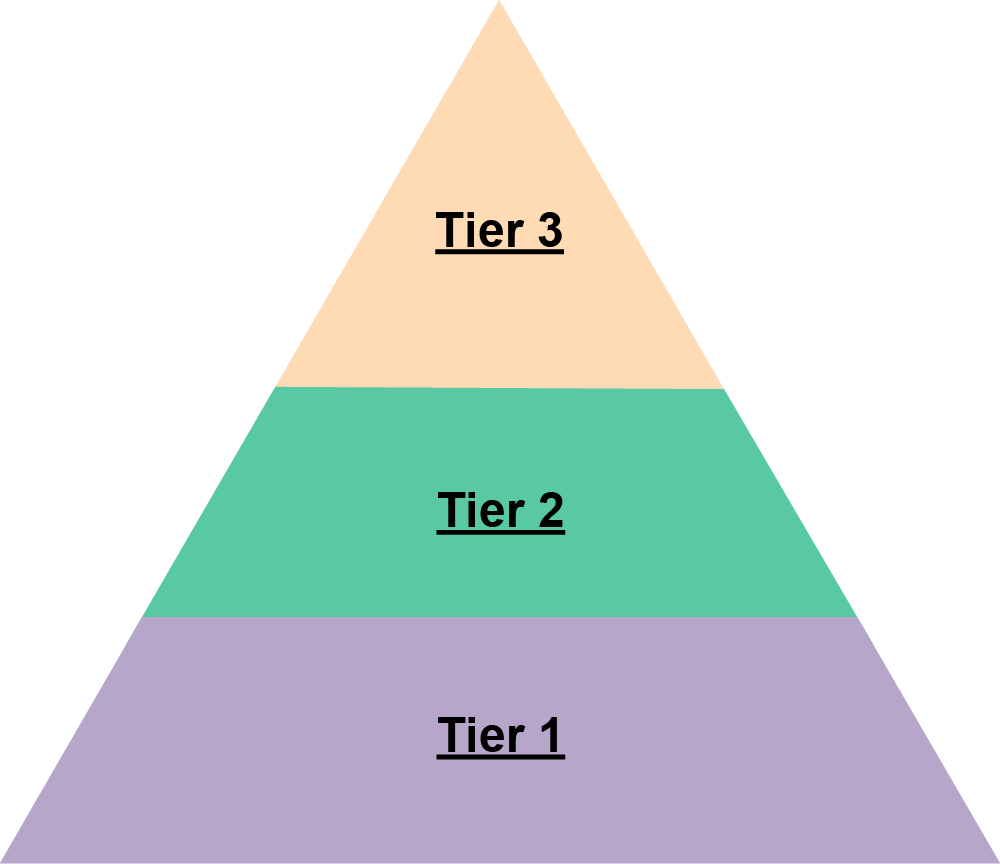
Universal screening allows teachers to use the data to identify which tier of instruction their students could fall into. This will allow them to plan for teaching across all three tiers. Below is more information on each tier.
Tier 1: Encompasses approximately 80-85% of students. This is where the core instruction takes place. It is a general classroom setting, taught by the general classroom teacher. Students are able to participate in and actively engage with whole group instruction with little differentiation needed.
Tier 2: Encompasses approximately 10-15% of students. Students in this tier still participate in Tier 1 instruction, but they also are put in small groups of 2-5 students that target their specific needs, including additional instruction. It is important to understand that Tier 2 targeted instruction is supplemental to core instruction.
Tier 3: Encompasses approximately 1-5% of students. These students need intense individualized and/or group instruction with support services beyond the general classroom.
Continuous Data Collection
When using MTSS, it is important to always be collecting student data to ensure students are getting the support they need, regardless of the tier they are in. Accelerate Education’s courses include various activities to collect data, from various assignments and projects to synchronous sessions with a teacher to assessments. These activities provide many data points teachers can use to understand a student’s progress through any course and to help the teacher make informed data-based decisions on what each student needs to succeed in their courses. Below is a list of activities within courses that can be used for continuous data collection.
Formative Assessments
Assignments
Lesson Quizzes
Interactive Self-Check Assessments
Teacher Synchronous Sessions
Summative Assessments
Written Benchmark Exams
Synchronous Benchmark Exams
Module Exams
Continuous data collection is most successful when teachers grade student work in a timely manner, being sure to provide purposeful feedback. When tasks are graded in a timely manner, the LMS system that houses Accelerate Education courses can provide easy-to-view snapshots of student progress so that teachers can readily identify students in need of intervention.
In addition to the data that can be collected from activities within a course, it is highly recommended that schools adopt nationally normed diagnostic assessments that can be given to students at the beginning, middle, and end of the year to measure student growth.
Differentiating Instruction
Regardless of the tier a student is in, teachers need to differentiate instruction. Accelerate Education’s courses can be customized by the teacher to help differentiate instruction for students.
Depending on the tier, activities can be modified to meet the needs of the students. Some modifications that teachers can do are:
Hide assignments from an individual or a group of students to reduce the assignment load for students who need more time to complete their work.
Edit directions to customize an assignment to fit the specific needs of students.
Customize assessments to reduce the number of questions, eliminate answer choices, provide feedback, and allow multiple attempts to take the assessment.
Add additional lessons, assignments, or assessments to a course.
In addition to making course customizations if needed, teachers can also differentiate instruction in the following ways:
Type of Learner
Ways to Differentiate
For struggling or less independent learners
Review the prerequisite skills that will be needed in the new lesson.
Offer additional learning objects as remediation for struggling learners, that can help by either re-teaching or reminding students of very important concepts.
Use synchronous instruction to review lesson objectives, concepts, and key words before students take the lesson exam.
For on-level, somewhat independent students
Use synchronous instruction to activate students' prior knowledge of the lesson's key concepts. (For example, what do they already know about the processes or concepts addressed in the upcoming lesson?)
Suggest that students spend some time each week with a parent or other adult, reviewing what they have read or written and practicing new skills.
For advanced, more independent students
Encourage students to write additional texts that apply a lesson's concepts in unique and creative ways.
Encourage students to find real-life applications for the concepts in a lesson or module.
Use synchronous instruction to expand on the lesson's key concepts.
Plan discussions in small groups.
Parent Involvement
Parent involvement is important at all tiers in MTSS. Below are some ways teachers can involve parents:
Make sure the teacher’s contact information and available hours are posted in an easy-to-find location for the parent.
Reach out to parents periodically to keep them informed about what is going on in class.
Reach out to parents to discuss their child’s progress in the course.
Encourage parents to utilize the Learning Coach Website for extra resources and activities they can do with their child at home to support their child’s learning.
Involve parents in any intervention plans related to their child.
Text
Guided Notes
Tutor
Video
How To
Meet your new study partner! With our powerful Student Tools, your online learning experience just got more accessible,
personalized, and thought-provoking than ever before!
Do you feel like you learn better when you watch videos? You’re not alone!
Research shows instructional videos can make learners more engaged and active in online classes,
when compared to text-only lessons.
Student Tools lets you turn some lesson pages into videos instantly! Just click the Student Tools tab and select Video.
Remember, video instruction is not available on every lesson page.
Go back to the lesson page any time by closing the Student Tools window.
Sometimes when you learn, it can feel like you’re just not getting it. Maybe you don’t really know what all the words on
the page mean, or you have to read a paragraph two or three times to understand what it’s about.
If this happens to you, just click the Student Tools tab and choose “Text.” This will automatically
simplify the instruction, making it easier to understand and remember.
Go back to the lesson page any time by closing the Student Tools window.
The science is in, and taking notes is one of the best ways to reinforce your learning.
Notes work even better when you write them by hand, since you’re more likely to put complex new ideas
in your own words and remember them longer.
You can quickly and easily access guided notes, as well as key lesson vocabulary,
by clicking Student Tools > Notes. Choose a PDF or Word Doc,
and fill them out online -- or even better-- print them out and take notes by hand!
Go back to the lesson page any time by closing the Student Tools window.
Imagine a teacher you can contact anytime, who is happy to answer all your questions and
knows pretty much everything in the world about the subject you need help with.
Say, “Hello!” to your Tutor! Click on Student Tools > Tutor, and ask any question about your class.
Your Tutor is super smart! You can ask the Tutor to explain things more clearly, make connections
between ideas, or even give you custom quizzes and feedback. You can click the links under References to learn more.
Go back to the lesson page any time by closing the Student Tools window.
Student Tools lets you create your own Flashcard decks to help you study. To get started, click Student Tools >
Flashcards. Press Add New Set and give it a title.
Now, decide what will be on the front and back of your first card. It can be a term and definition, a challenging question,
or even a funny phrase that helps you remember something. Click Add Card to Set to make a new Flashcard.
You can delete sets or cards by clicking the trash can icon. When you’re done, click Save Cards to Set.
Now you can Review your deck. Read the front of the card, and think of the answer. Even better, say your answer out loud! Then, click the card to flip it over.
Depending on how you did, you can either keep that card in the deck to study again by clicking Next or Previous, or if you got it right, click remove.
Remember to review your flashcards often, space out study sessions, and keep practicing until you know them all!
Go back to the lesson page any time by closing the Student Tools window.