To plan this artwork, you are going to create a vision board. In fact, you will be creating at least three different vision boards and then choosing your favorite as inspiration for your final artwork. So, what is a vision board?
Click on the following images to enlarge them and learn more about making a vision board (or inspiration board).
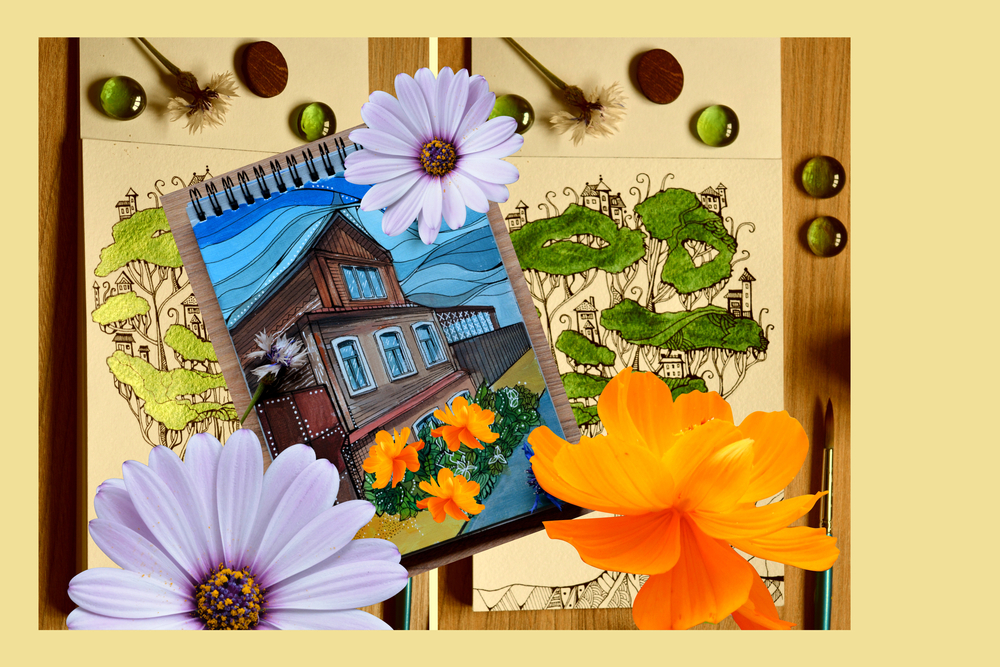
Sometimes, a vision board is made up of objects from nature and artwork made by the artist or by someone that they admire. Flowers, and other natural objects, can be used to outline a color palette.
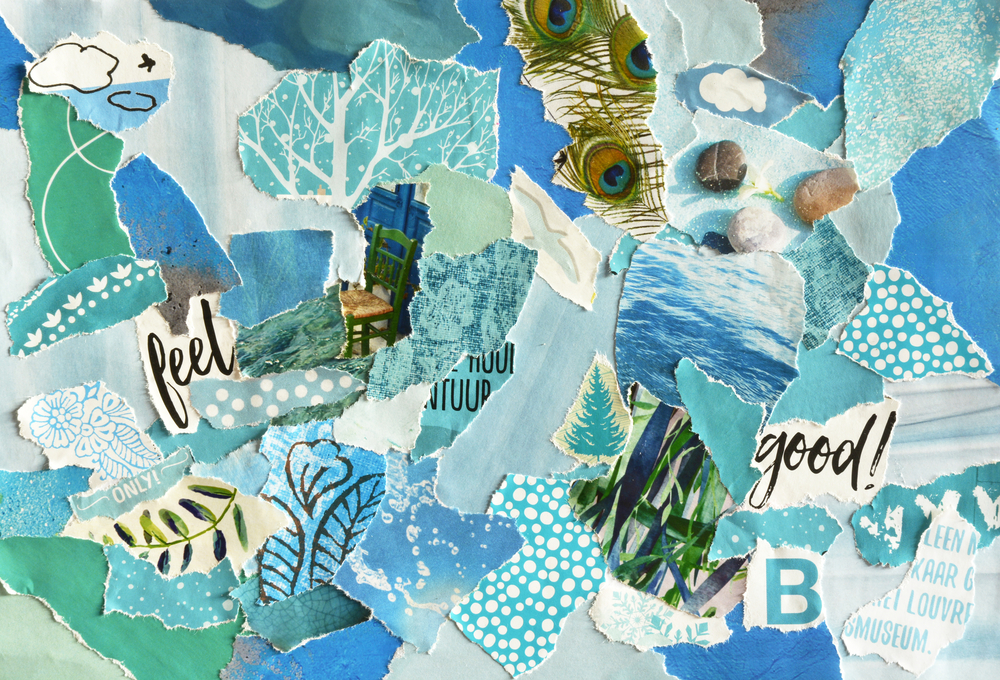
Vision boards can also look like a collage of different things torn out of magazines or your own sketchbook. This can be a fun way to establish a color palette, the mood or emotion you want the artwork to express, and what the main focus of your artwork will be.
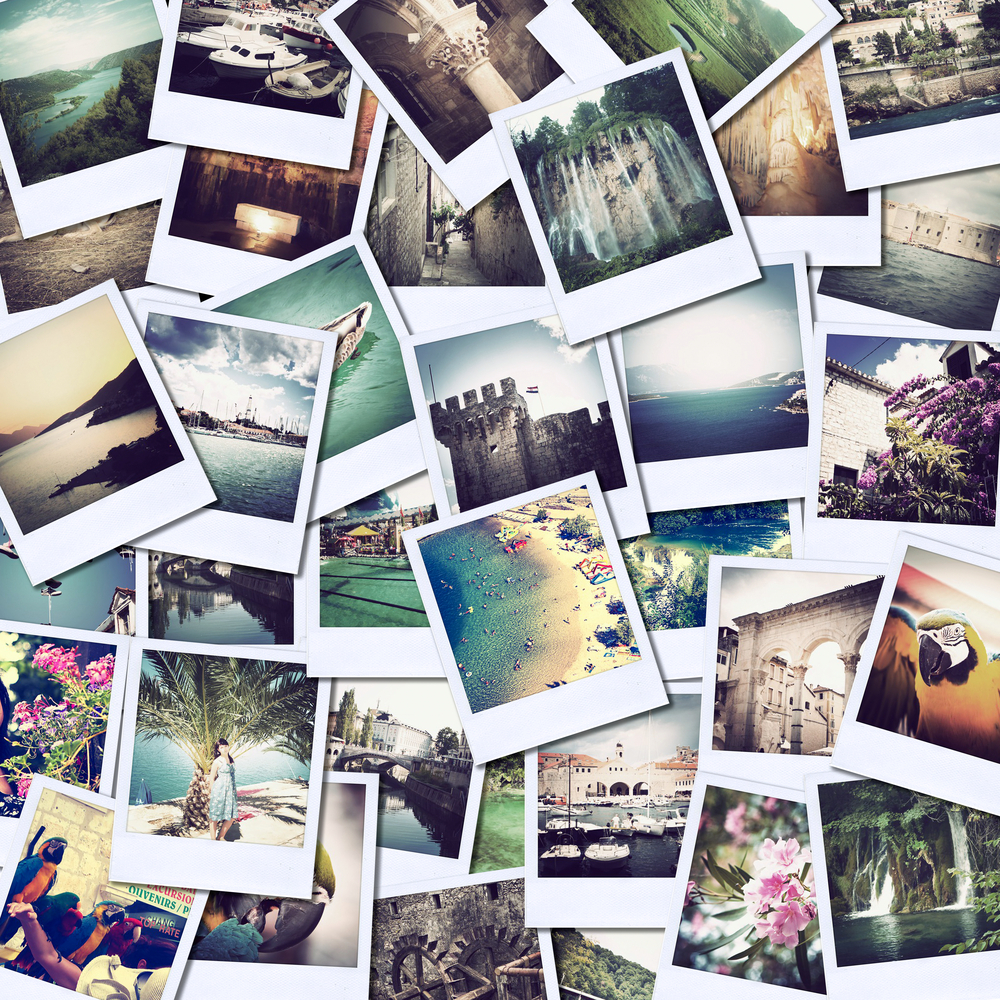
You can also create digital vision boards by collaging photos that you take. This can be done on programs such as Canva, PicMonkey, and Adobe Spark. These apps allow you to download images from artists that you admire, images of landscapes you think are interesting, and pictures of your own work and combine them together. This is probably the easiest and most efficient way to create a vision board, but it is not as tactile and hands-on as creating a collage in your sketchbook.
Essentially, a vision board is a collage of images that the artist feels would work together in a composition. Most people have made a collage before to gather information together for a project or presentation. This is essentially the same thing.
Text
Guided Notes
Tutor
Video
How To
Meet your new study partner! With our powerful Student Tools, your online learning experience just got more accessible,
personalized, and thought-provoking than ever before!
Do you feel like you learn better when you watch videos? You’re not alone!
Research shows instructional videos can make learners more engaged and active in online classes,
when compared to text-only lessons.
Student Tools lets you turn some lesson pages into videos instantly! Just click the Student Tools tab and select Video.
Remember, video instruction is not available on every lesson page.
Go back to the lesson page any time by closing the Student Tools window.
Sometimes when you learn, it can feel like you’re just not getting it. Maybe you don’t really know what all the words on
the page mean, or you have to read a paragraph two or three times to understand what it’s about.
If this happens to you, just click the Student Tools tab and choose “Text.” This will automatically
simplify the instruction, making it easier to understand and remember.
Go back to the lesson page any time by closing the Student Tools window.
The science is in, and taking notes is one of the best ways to reinforce your learning.
Notes work even better when you write them by hand, since you’re more likely to put complex new ideas
in your own words and remember them longer.
You can quickly and easily access guided notes, as well as key lesson vocabulary,
by clicking Student Tools > Notes. Choose a PDF or Word Doc,
and fill them out online -- or even better-- print them out and take notes by hand!
Go back to the lesson page any time by closing the Student Tools window.
Imagine a teacher you can contact anytime, who is happy to answer all your questions and
knows pretty much everything in the world about the subject you need help with.
Say, “Hello!” to your Tutor! Click on Student Tools > Tutor, and ask any question about your class.
Your Tutor is super smart! You can ask the Tutor to explain things more clearly, make connections
between ideas, or even give you custom quizzes and feedback. You can click the links under References to learn more.
Go back to the lesson page any time by closing the Student Tools window.
Student Tools lets you create your own Flashcard decks to help you study. To get started, click Student Tools >
Flashcards. Press Add New Set and give it a title.
Now, decide what will be on the front and back of your first card. It can be a term and definition, a challenging question,
or even a funny phrase that helps you remember something. Click Add Card to Set to make a new Flashcard.
You can delete sets or cards by clicking the trash can icon. When you’re done, click Save Cards to Set.
Now you can Review your deck. Read the front of the card, and think of the answer. Even better, say your answer out loud! Then, click the card to flip it over.
Depending on how you did, you can either keep that card in the deck to study again by clicking Next or Previous, or if you got it right, click remove.
Remember to review your flashcards often, space out study sessions, and keep practicing until you know them all!
Go back to the lesson page any time by closing the Student Tools window.