Some assignments will include activities that require you to record your voice. In order to do so, you will need a microphone and software on your computer. The required file format is mp3 or m4a. Your teacher will have no trouble opening this file and your recording will be played on whatever device he or she is opening it on.
If you're able to install software on your computer, Audacity is a great, open-source choice for capturing and editing audio. However, if you have a Chromebook, iPad, or are using a public device (like a library computer), you can still record your voice using apps or online websites.
Audacity
Online Voice
Recorder
Chrome
Extension
iPad
Audacity
-
FIRST: Download and install the software.
You can use any audio recording software you like as long as you can get a good quality recording in the mp3 format. If you do not have audio recording software or do not know what to use, we recommend Audacity. It is free, open source, cross-platform software for recording and editing sounds. You can download it to your computer and start using it right away. You may need to check with your school administrator if you are using a school-issued computer before you attempt the download. Below are directions for downloading in video format. You can either print the directions or watch the video - or both!
-
SECOND: Install the LAME file.
In order to use Audacity to export mp3's (which is the required audio recording format), you will need to first download the LAME audio encoder. This can be a little tricky the first time, but you only need to do this the first time you export as an mp3. After the first time, the program remembers where the encoder is located. Below is a video to walk you through the steps.
- THIRD: Test your microphone.
Many computers come pre-installed with a microphone. Check your operating system to see where the microphone settings are so you can test the functionality of the built-in mics. Usually, there is a testing window where you can alter the volume settings by testing the levels. If you are unable get a good sound, you may need to purchase an external microphone. There are many varieties available ranging in prices. Check with your school mentor to see what would be needed in your situation. Give a few test runs using the microphone and software.
- FINALLY: Record, export and name your file.
Now that you have a working microphone and software to record, record, export as an mp3, and name your file per your teacher's instructions.
Online Voice Recorder
There are many online services that let you record a voice sample and send it to your teacher. One free and easy-to-use option is Online Voice Recorder.
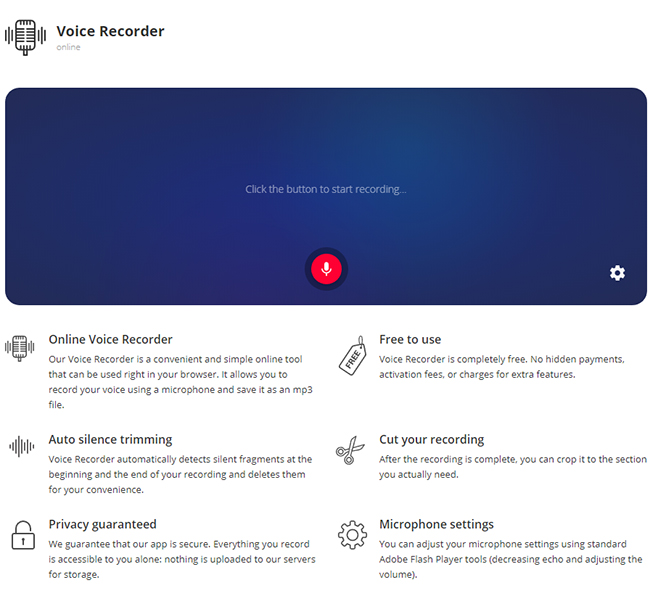
To record audio, simply click the "settings" gear in the lower right corner to select your microphone input, then click the red microphone icon to begin recording. You can pause your recording by clicking the pause icon. Press the stop icon to end the recording. Then, click "Save" to create the .mp3 file to send to your teacher.
Audio Voice Recorder Pro
If you'd prefer an in-browser solution, you can install Audio Voice Recorder Pro or a similar extension directly into Chrome. You can also search Firefox for Add-Ons that record audio. Make sure you grant any extension or add-on the permissions they need to use the microphone. The app icon will appear in your browser navigation; just click on it any time to begin recording.
Voice Memos
For iPad users, the native Voice Memos application can be used to create .m4as to send to your teacher. Follow these instructions to create a voice recording on an iPad.
