
Let's Investigate
In this investigation, you will explore net forces and learn how they can be calculated and how they can change the speed and direction of an object’s motion. You will also explore how net force is related to the mass of an object and its acceleration.
For this investigation, you will use the PhET simulation “Force and Motion: Basics,” which appears below. Using this simulation, you will first study net forces as a tug of war between teams with different forces. Then, you will look at the accelerations produced by different forces on an object of the same mass as well as the accelerations produced when the mass changes, but the force remains the same.
Before you begin, click the Word or PDF link below to download your assignment worksheet. then, read through the tabs below for the instructions. When you have completed the lab and the assignment, submit your worksheet to your teacher.
| Word |
Attribution: PhET Interactive Simulations | University of Colorado | https://phet.colorado.edu
The investigation consists of the parts shown below. Click the button below to download the instructions or click through each tab to read and follow the steps to complete the investigation.
Part One:
Net Forces
Part Two: Mass and Acceleration
Part Three: Force and Acceleration
Read and follow the directions on each slide.
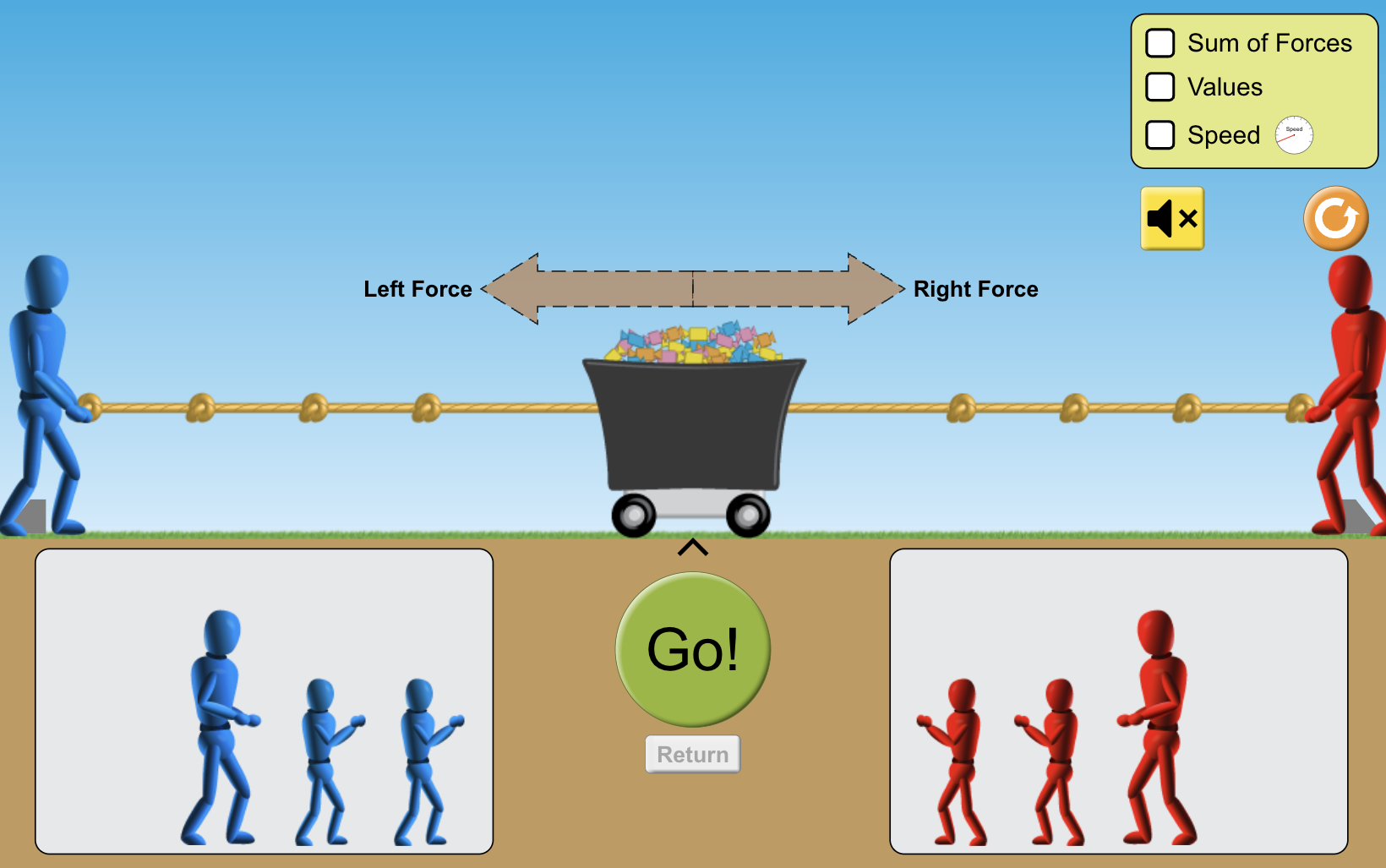
1. Click the “Net Forces” mode of the simulation. On the screen, there is a cart in the middle. Below the cart is a selection of blue figures on the left and red figures on the right. These figures can be moved up to the rope that is attached to the cart. Move the largest blue figure and the largest red figure to the ends of the ropes on their respective sides. 2. Click the “Go” button to allow the figures to exert a force on the rope and pull on the cart. Describe what happens on Question 1 on your assignment worksheet. Then, answer Question 2 on your assignment worksheet. To stop the tug of war but keep all the values showing on the screen, click on the “Pause” button. 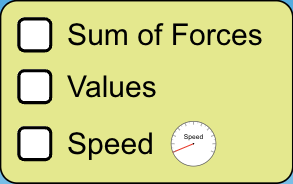
3. The section toward the top right side of the simulation window has areas labeled “Sum of Forces,” “Values,” and “Speed.” Click on “Values.” This will show the force supplied by each figure. Answer the questions about force on Question 3 on the assignment worksheet. 4. The net force is the overall force on the cart. Using the values for the forces, determine the net force produced by these two figures. Record that on Question 4 on the assignment worksheet. Check your answer by clicking “Sum of Forces” in the section toward the top right side of the simulation window. 5. Click “Speed” in the section toward the top right side of the simulation window. This will show the relative speed of the cart. It does not give an actual speed, but the farther the needle moves, the faster the cart is going. To return the cart to the center of the screen, click on the “Return “button. 6. While the simulation is paused, keep the figures on each side and add the next largest red figure to the right side. Predict what will happen to the cart and answer Question 5 on the assignment worksheet. 7. Click on “Go” and let the simulation run. Answer Questions 6-8 on your assignment worksheet. 8. Click the “Return” button to return the cart to the center. Then, add one small red figure on the right side and one medium blue figure on the left side to the figures that are already there. Predict what will happen to the cart and answer Questions 9 and 10 on your assignment worksheet. 9. Click on “Go” and let the simulation run. 10. Add one blue figure on the left while the simulation is running. Answer Question 11 on your assignment worksheet. 11. While the simulation is running, determine what you must do for the blue team to win. Answer Questions 12 and 13 on your assignment worksheet. |

|

In Part 1 of the investigation, you saw that a net force will cause the motion of an object to change. This means that a net force causes the acceleration of an object. In this part of the investigation, you will study the relationship between mass and acceleration.
Click on the “Acceleration” mode located below the simulation window. In this simulation, there are various objects that can be pushed by the figure shown on the track. The default object is the wooden box.
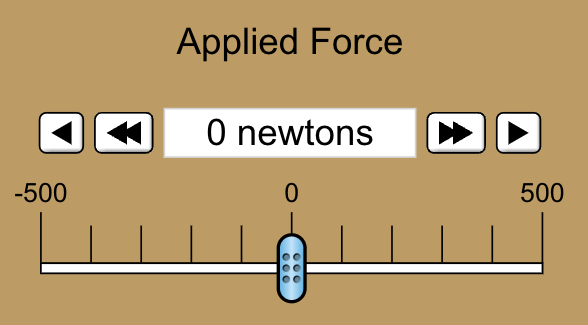
The controller for the “Applied Force” is located below the track. The applied force is set to 0 newtons. To make the figure push with a constant force on the object, use the arrows on either side of the force reading. The double arrows add 50 N at a time and the single arrow adds 1 N at a time. You can also move the slider, but that will exert a force only until you take the mouse off the slider.
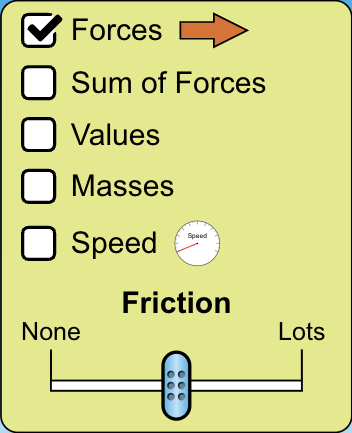
- The section toward the top right side of the simulation window has various labelled areas. It also has a slider for “Friction.” “Forces” should already be selected. Select “Sum of Forces” and “Values.” Select “Masses” and notice that the mass of each object appears on the object. Select “Speed” and notice that a gauge for speed appears toward the top left side of the screen. Select “Acceleration” and notice that a gauge for acceleration appears toward the top left side of the screen as well. Then, move the slider for friction to “None.”
- Use the default object of the wooden box. Record the mass of the box on the data table under Question 14 on your assignment worksheet. Apply a force of 50 N to the wooden box by clicking on the right-facing double arrow once. Since there is no friction, this is the net force. Record the net force and the acceleration for this object in the data table under Question 14 on your assignment worksheet.
- Click the “Pause” button and add another wooden crate on top of the previous one. This doubles the mass. Click on “Play” again. Record the net force, mass, and acceleration for this object in the data table under Question 14 on your assignment worksheet.
- Click on the “Pause” button again and add a different object or person to the crates. Click on “Play” again. Record the net force, mass, and acceleration for these objects in the data table under Question 14 on your assignment worksheet.
- Repeat Step 4 for 2 more objects so that you have a total of 5 sets of data in the data table on Question 14 on your assignment worksheet. Answer Question 15 on your assignment worksheet.

For this part of the investigation, you will continue using the “Acceleration” mode of the simulation. To clear the screen, click on the “Reset” button.
- “Forces should still be selected. Select the “Sum of Forces,” “Values,” “Masses,” “Speed,” and “Acceleration.” Also move the slider for friction to “None.”
- Apply a force of 50 N to the box. When it starts moving, click on the “Pause” button. Record the net force, mass, and acceleration of the box on the data table on Question 16 of your assignment worksheet.
- Keep the object the same but increase the force to 100 N (by clicking on the right-facing double arrow). Click on “Play” and when the object starts moving, click on “Pause” again. Record the net force, mass, and acceleration of the box on the data table on Question 16 of your assignment worksheet.
- Continue to increase the force by 50 N increments up to 300 N and record the net force, mass, and acceleration for each. If the speed gets up to 40 m/s, the figure will fall and stop exerting a force. If you play and then pause after each increase, the speed will not get up this high. If it does, use the reset button to return all values to 0. Then, you can start by applying the next force. Make sure all values are selected as they were in the beginning of this section.
- Answer Questions 17 and 18 on your assignment worksheet.
