What knowledge and skills have you gained in this module?
Two hundred years ago, Americans got most of their information from the people around them: friends, family, and coworkers. These people played a big part in shaping an individual’s worldview. Today, for better and for worse, that same worldview can be swayed and shifted by an endless assortment of speakers and screens. It’s a one-side conversation since technology, for the most part, can’t hear its audience, much less engage them in deep conversation. This endless stream of information can empower people with limitless knowledge. However, it can also leave them vulnerable to manipulation and untruth.
Today, students must be equipped with the skills to interpret the world around them as presented by media—both media they choose and media that has been chosen for them. This module has explored those aspects of Information Age media that help you fully understand exactly what you’re seeing and hearing, as well as address misinformation. Scan through the slideshow below to recount some of the module’s broader topics, and after your review, respond to the question on the bottom of the page.
Inspect the Tech
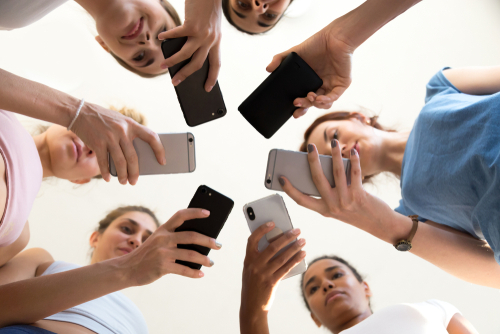
Understanding media involves learning a type of literacy that goes beyond reading and writing. As a media-literate student, you need to keep up with a world where technology is growing and evolving faster than you are—changing both how you learn and what you learn. Understanding the features of this technology is key to true media literacy.
Something Doesn’t “Ad” Up
Multimedia messages are available all day. You must stay aware of the techniques they use to get your attention—especially when they are trying to convince you to think or act a certain way. It’s not so much that propaganda and advertising are always a problem—it’s that they’re at their most effective when you are least aware of them.
New News Blues
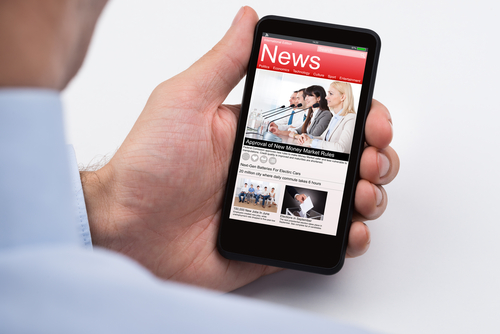
There has never been more news media in our culture than there is today—unfortunately, more and more of it is coming from untrustworthy sources. As technology advances to the point where even seeing doesn’t necessarily mean believing, understanding the journalist’s code of ethics will help you identify the use of shaky evidence, loaded language, and other objectionable habits.
On with the Shows
Several categories of visual broadcast media have caused us to consider what “reality” really is. How do films use the technology of a camera lens to make new meanings out of established stories? And what does that suggest about whether the genre of Reality TV can ever be truly real? Finally, why does society feel the need to make light of what’s real through the use of humorous parody?
Reading Between the Screens
To apply the skills that you need to navigate today’s barrage of media messages, you need to expand your vocabulary to include some concepts that are unique to living in an Information Age. Learning the strategies that enable you to read more efficiently and the devices that help you communicate important concepts will assist you in every form of media literacy.
Question
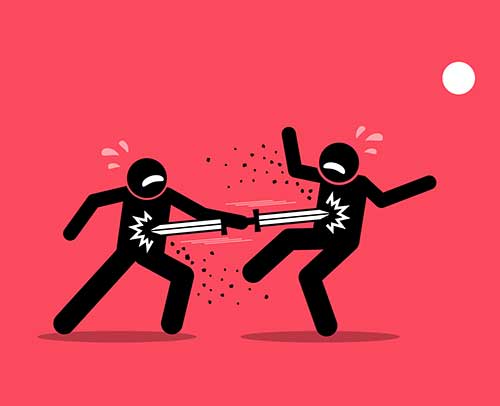
The image of a double-edged sword is often used to describe something that has both positive and negative effects for the user. How can Information Age media be described as a double-edged sword?
Many aspects of media in the Information Age have both positive and negative effects. While people are now able to create messages with greater flexibility and purpose, those same messages can be used to harm and manipulate audiences with fewer media literacy skills. While people now have greater access to information via media, some of that information can be completely bogus, potentially leading to ignorance.
Text
Guided Notes
Tutor
Video
How To
Meet your new study partner! With our powerful Student Tools, your online learning experience just got more accessible,
personalized, and thought-provoking than ever before!
Do you feel like you learn better when you watch videos? You’re not alone!
Research shows instructional videos can make learners more engaged and active in online classes,
when compared to text-only lessons.
Student Tools lets you turn some lesson pages into videos instantly! Just click the Student Tools tab and select Video.
Remember, video instruction is not available on every lesson page.
Go back to the lesson page any time by closing the Student Tools window.
Sometimes when you learn, it can feel like you’re just not getting it. Maybe you don’t really know what all the words on
the page mean, or you have to read a paragraph two or three times to understand what it’s about.
If this happens to you, just click the Student Tools tab and choose “Text.” This will automatically
simplify the instruction, making it easier to understand and remember.
Go back to the lesson page any time by closing the Student Tools window.
The science is in, and taking notes is one of the best ways to reinforce your learning.
Notes work even better when you write them by hand, since you’re more likely to put complex new ideas
in your own words and remember them longer.
You can quickly and easily access guided notes, as well as key lesson vocabulary,
by clicking Student Tools > Notes. Choose a PDF or Word Doc,
and fill them out online -- or even better-- print them out and take notes by hand!
Go back to the lesson page any time by closing the Student Tools window.
Imagine a teacher you can contact anytime, who is happy to answer all your questions and
knows pretty much everything in the world about the subject you need help with.
Say, “Hello!” to your Tutor! Click on Student Tools > Tutor, and ask any question about your class.
Your Tutor is super smart! You can ask the Tutor to explain things more clearly, make connections
between ideas, or even give you custom quizzes and feedback. You can click the links under References to learn more.
Go back to the lesson page any time by closing the Student Tools window.
Student Tools lets you create your own Flashcard decks to help you study. To get started, click Student Tools >
Flashcards. Press Add New Set and give it a title.
Now, decide what will be on the front and back of your first card. It can be a term and definition, a challenging question,
or even a funny phrase that helps you remember something. Click Add Card to Set to make a new Flashcard.
You can delete sets or cards by clicking the trash can icon. When you’re done, click Save Cards to Set.
Now you can Review your deck. Read the front of the card, and think of the answer. Even better, say your answer out loud! Then, click the card to flip it over.
Depending on how you did, you can either keep that card in the deck to study again by clicking Next or Previous, or if you got it right, click remove.
Remember to review your flashcards often, space out study sessions, and keep practicing until you know them all!
Go back to the lesson page any time by closing the Student Tools window.