Neocities's system has the capability to create, edit or delete files. What if you uploaded the wrong file for the project, or uploaded it to the wrong folder? If you hover over a file name, you'll see menu options for "Edit" and "Delete" appear.
| List View |  |
| Icon View | 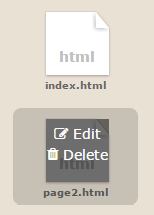 |
Your file listing will appear differently depending on the width of your browser window, or if you manually switch between icon view and list view.
Predictably enough, clicking "Delete" will remove a file. But what does clicking "Edit" do? Well, maybe you previewed your file and noticed something in it you want to change? Clicking "Edit" will take you into Neocities's code editor. You can make any edits you want to your file, and then click the "Save" button to save your changes. There's also a "View" button in this window so that you can preview your edits as you're working. You should also see a directory path at the top of the page with "Dashboard > (your file)." When you're finished editing, click "Dashboard" to leave the editor and go back to your file listing.
If you like the Neocities code editor better than the text editing program you've used so far to write HTML, then you may want to just create new files right in Neocities. Remember the "New File" button back at the Dashboard? If you click this button, you'll get a dialog to name a new HTML file. Then, if you go to edit this new file, it will have the basic structure in place, as well as a few examples of HTML tags. Feel free to use this editor instead to work on your HTML files, but if you do, be sure to back up your work on occasion in case you accidentally delete a file or anything happens to your Neocities account.
You can back up work from Neocities in one of two ways. If you want to save just one file, right-click the file name and select to save the link. But if you'd like to back up your entire website directory, you can click the link "Download entire site" beneath your file listing, and it will download all of your website files as a ZIP file.
