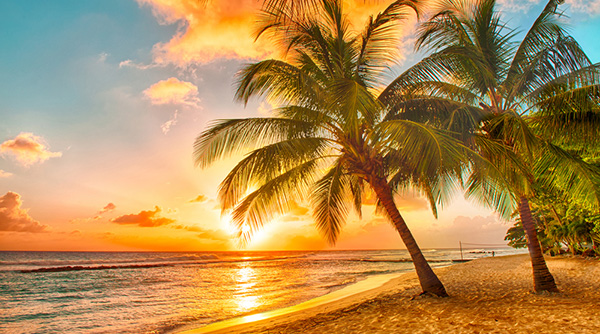
Jumping from device to device, it is difficult for images to produce a desired effect across the board. On a larger display, you can have a big, beautiful image that spans the screen. But then that same image on your phone is a nuisance. It'll either cause a lot of horizontal scrolling, or the phone will automatically resize the whole page to accommodate it, making everything else tiny!
But these things only happen when you're using fixed dimensions for images. There are actually a couple techniques available without even turning to media queries right away. Instead of a fixed width, you can use a percentage—for max-width. In fact, you won't set the normal width at all. A max-width of 100% allows the image's width to decrease along with the viewport, while never getting wider than the original file's actual width, which avoids any pixelation. Just be sure to set the image's height to "auto" so the height will always adjust proportionally as the width changes with the viewport.
|
img { |
 |
|
| Widescreen Monitor | Smartphone Portrait Mode |
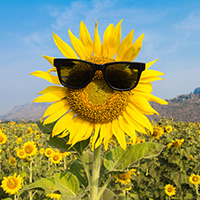
Percentage widths, especially when paired with min-width and max-width, can give a lot of control when working with a grid of images. If they are all contained within a div, the div can take on a min-width and max-width to ensure it will adjust, but never get too cramped or too stretched out. Thankfully, images will wrap to the next line if they run out of space. But you may end up with weird patterns. If you have four images across, and the browser is squeezed in until only one image jumps down, it may look weird to have a row of three followed by a row of one. At this point, media queries can be taken advantage of to ensure a nice grid is always intact.
 |
|
| No media queries are added here. | At a certain viewport width, the div surrounding the images shrinks down to force a 2x2 grid. |
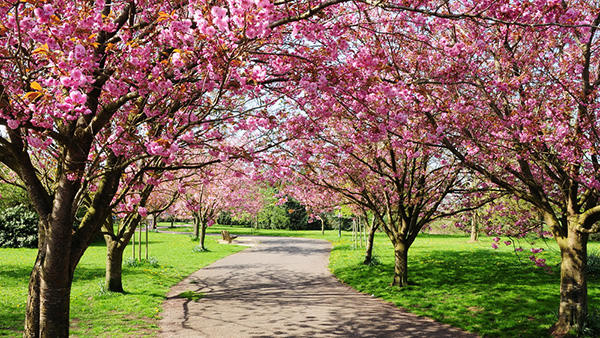
As an additional measure to optimize image use, a more recent HTML tag has been introduced called <picture>. This is an HTML5 tag that works in a similar fashion to the <audio> and <video> tags. It can adopt multiple <source> tags to make multiple image options available. These <source> tags also use a new attribute to set the image URLs—"srcset". By placing media queries on the <source> tags, you can actually select entirely different pictures depending on how the page is being viewed. For example, on a large display, you may have a wide, zoomed-out picture of some cherry blossom trees. However, it’ll be hard to see any detail on a phone display, so that image can be replaced with one that is more zoomed in on the cherry blossoms. This affords you more detail on a smaller viewport.
|
<picture> |
 |
 |
| Widescreen Monitor | Smartphone Portrait Mode |
